
Why free apps are so popular in 2026
Streaming subscriptions keep rising, so many viewers look for free, ad-supported ways to watch. Free apps lower the cost of trying a new service and let people sample content before paying for anything.
Castle follows that model on Android: the app is free to download and watch, with ads in the free tier and an optional premium tier. On a PC it runs through an emulator, because there is no separate paid desktop product.
Is there an official Castle PC app?
No. There is no native Windows or macOS build. Any site offering a standalone 'Castle PC download' program is not official. The supported way to use Castle on a computer is to run the Android APK in an emulator.
An emulator creates an Android environment on your computer, so the app behaves as it does on a phone, with keyboard and mouse controls.
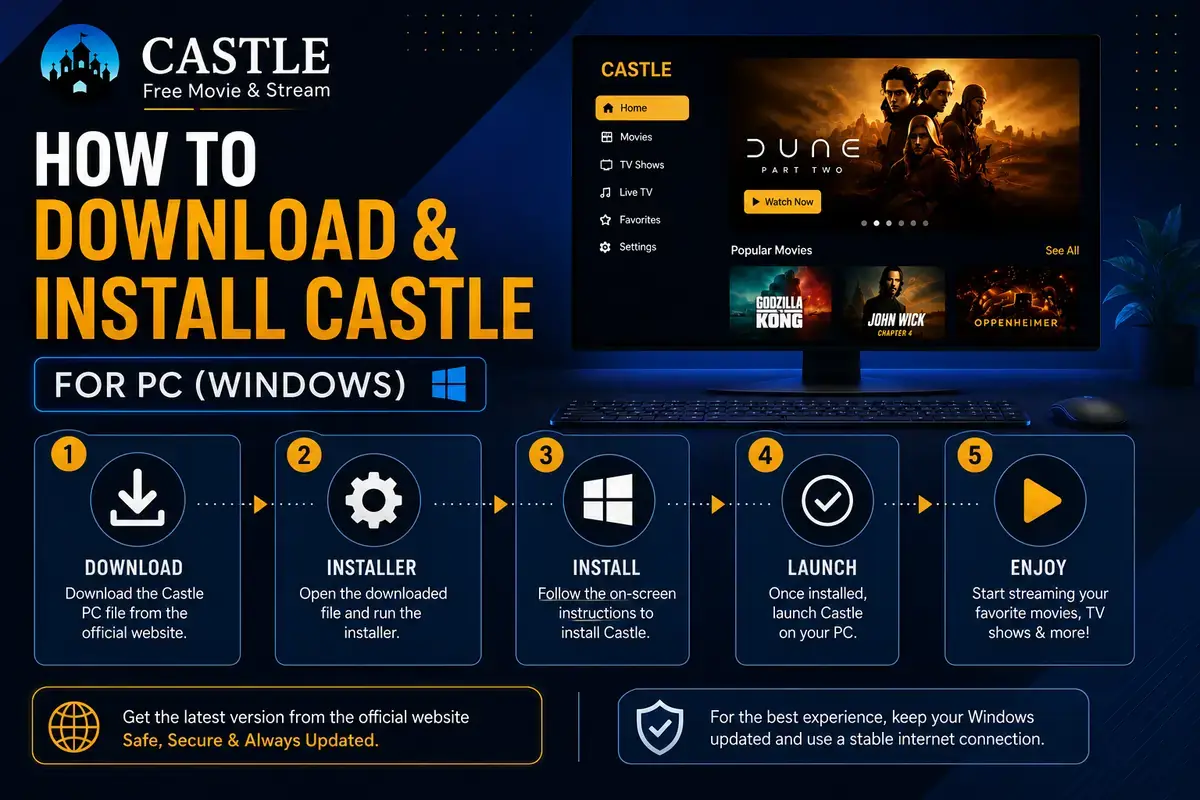
Install Castle on PC: step by step
The process works on Windows and macOS provided your computer meets the emulator's system requirements.
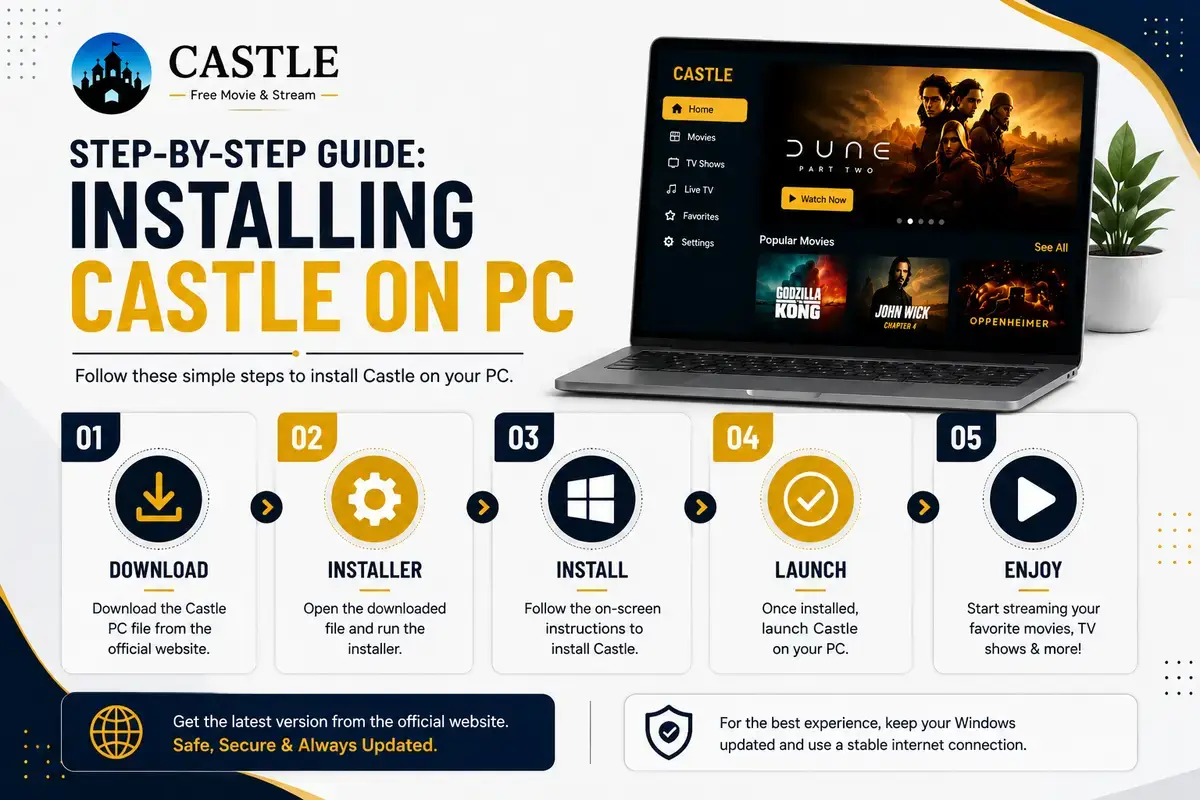
- Install an Android emulator. Download BlueStacks, LDPlayer, MuMu Player or NoxPlayer from its own official site and install it.
- Go to the official Castle site. Start the emulator, open its browser and visit this website.
- Download Castle. Open the download page and save the official Castle APK inside the emulator.
- Open and install the APK. Open the file from the emulator's file manager, tap Install, then launch Castle from the app list.
Install safely
Use the official APK and a reputable emulator from its own website. Avoid modified Castle files and emulator packages from third-party download portals, which are common places for bundled software you did not ask for.
Latest version and best settings
The current Android release is v2.1.4, about 35.7 MB. Give the emulator at least two CPU cores and enough memory in its settings, and enable virtualisation if the emulator recommends it. A wired connection or strong Wi-Fi keeps live channels stable.
Customer reviews and ratings
We do not publish star ratings, review counts or download numbers for Castle, because none have been verified for this official site. Any rating or user count shown on a third-party "Castle PC" page should be treated as unreliable.
For first-hand feedback, try the app yourself with the official APK in an emulator. If you have a problem, the help page explains the common fixes and the contact page lists the official support email.
Sum up
There is no native Castle PC app for Windows or macOS. The supported method is to install a reputable Android emulator, then run the official Castle APK from this website inside it.
Download only from the official site, check that the file is about 35.7 MB, and give the emulator enough resources for smooth playback. For phones, TV devices and other questions, see the download and help pages.
System requirements for running Castle in an emulator
Castle itself has modest needs because it is a lightweight Android app. Most of the demand comes from the emulator, so check the emulator's own requirements before choosing one.
The figures below describe the Castle file and the setup approach, not a hardware guarantee. If your computer is older, give the emulator fewer background tasks and lower the playback quality inside Castle.
| Castle APK | v2.1.4, about 35.7 MB |
|---|---|
| Android requirement inside the emulator | Android 6.0+ |
| Emulator | use an official build from the emulator's own website |
| Virtualisation | enable it in your computer's settings if the emulator asks |
| Connection | wired or strong Wi-Fi for live channels |
Which emulator should you use?
Several free emulators can run the Castle APK. They differ in setup, resource use and how closely they mimic a phone, so the best choice depends on your computer.
Install only from the emulator's own official site. Third-party bundles can include unwanted software, and an outdated emulator is a common cause of crashes that look like app problems.
- BlueStacks: widely used, with a straightforward setup wizard
- LDPlayer: a common choice on Windows gaming machines
- MuMu Player: another Windows option with a simple app drawer
- NoxPlayer: available for Windows and macOS
Pros and cons of watching Castle on a PC
A PC setup works well for a large screen and a keyboard, but it adds one extra layer between you and the app. Decide whether that trade-off suits the way you watch.
If most viewing happens on a phone or television, the dedicated builds are the simpler path. The emulator route is best when you specifically want a desktop window or keyboard control.
- Pro: larger screen and keyboard search
- Pro: no separate TV device needed
- Pro: uses the same official APK as a phone
- Con: no native PC build; an emulator is required
- Con: performance depends on your computer
- Con: live channels can be less stable than on a phone or TV build
FAQ
Is there an official Castle PC app?
No. There is no native PC build. Run the official Android APK inside an Android emulator.
Which emulator should I use for Castle?
BlueStacks is stable for most systems. LDPlayer, MuMu Player and NoxPlayer are lighter and suit older computers. All four can run the Castle APK.
Is it safe to install the Castle APK on a PC?
Yes, when you download the APK from the official website and install the emulator from its own site. Avoid modified files.
Is Castle free on PC?
Yes. The free tier shows ads; an optional premium tier removes them. Watch on PC through an emulator.
Can I download movies on Castle on my PC?
Yes. Offline downloads work inside the emulator. Any limits on saved titles are shown in the app; check the in-app rules for current terms.