
Before you install
Check Android 6.0+, enough storage for the app and a few offline downloads, and permission to install apps outside the Play Store.
Castle is not on the Play Store, so Android labels it an unknown source. That warning is expected for sideloaded apps, and you can turn the setting off again after installation.
How to install Castle APK on an Android phone
Use this method for phones and tablets.
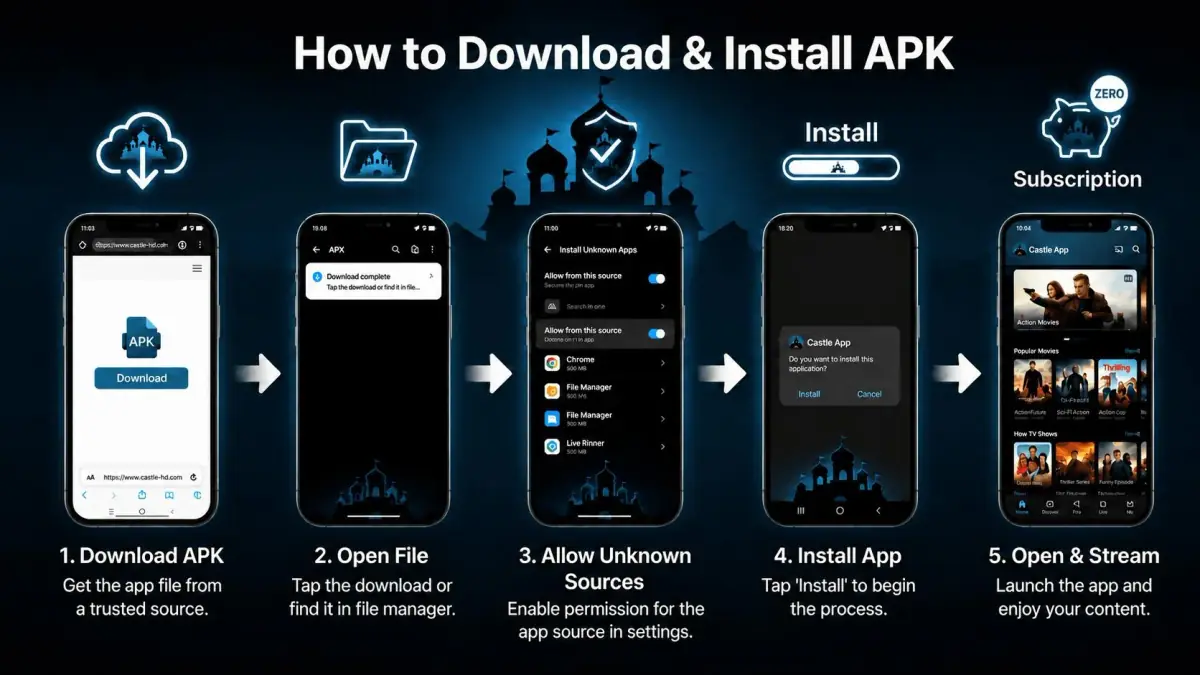
- Download the official file. Open the download page on this site and save the APK to your device.
- Open the APK. Tap the file in Downloads. If Android asks, allow unknown apps only for the browser or file manager you used.
- Confirm and launch. Tap Install, check the source if Play Protect appears, then tap Open when the install finishes.
How to install Castle on Fire TV Stick and Android TV
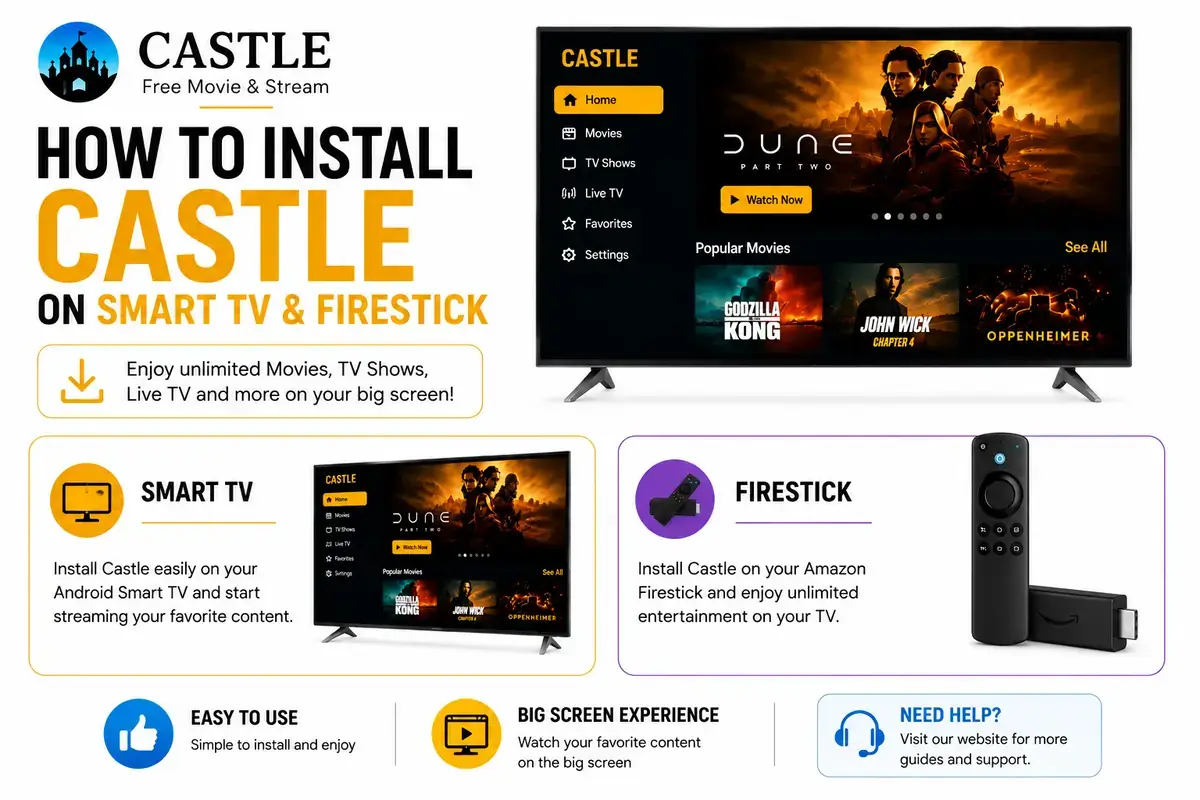
On Fire TV Stick, turn on Apps from Unknown Sources in Developer Options, install a downloader app from the Amazon Appstore, open the official Castle link and install the APK.
On Android TV, install a downloader app, allow unknown sources, open the official link and install. The remote-friendly layout puts categories and search one tap away.
Getting started: how to use Castle like a pro
Home shows what is trending and recently added. Use search for a title, actor or genre, and filters to narrow by language or category.
Open a title to pick quality and start watching. If a stream stutters, switch servers in the player, or save the title for offline viewing.
- Search and filter to find something in seconds
- Watch without an account; sign-in is only for invite rewards
- Change video quality any time in the player
- Download titles before you travel
Why is Castle not installing?
Most install failures come from Install unknown apps being off. Enable it for the app that opened the APK. If you see 'app not installed', remove an older Castle build and check free storage.
If the app opens but streams fail, check your connection and lower the video quality. A strong Wi-Fi signal gives the most stable playback.
Quick facts before you begin
Check these details once before you start. They are the same figures used across the official site, so a file that does not match is not the build described in this guide.
Watching needs no account. Sign-in is only part of the optional invite area, so you can install and start streaming without entering personal details.
| Current Android build | v2.1.4 (35.7 MB, Android 6.0+) |
|---|---|
| Current TV build | v1.1.3 (21 MB) |
| Official source | this website only |
| Account | not required to watch |
Download vs install: what each step does
People often use the two words together, but they describe different actions. Downloading saves the APK file to your device; installing lets Android check that file and add Castle to your app list. Knowing which step failed makes a problem much easier to fix.
If the file never arrives, the problem is the download: check your connection and available storage. If the file is present but Android refuses to open it, the problem is the install: check the unknown-apps setting and whether an older copy is already present.
- Download. Save the official APK from the download page and check its size and version.
- Allow the source. Enable Install unknown apps for the browser or file manager you used, just once.
- Install. Tap the file, confirm, and wait a few seconds for Android to finish.
- Open. Launch Castle from your app drawer; no account is needed to watch.
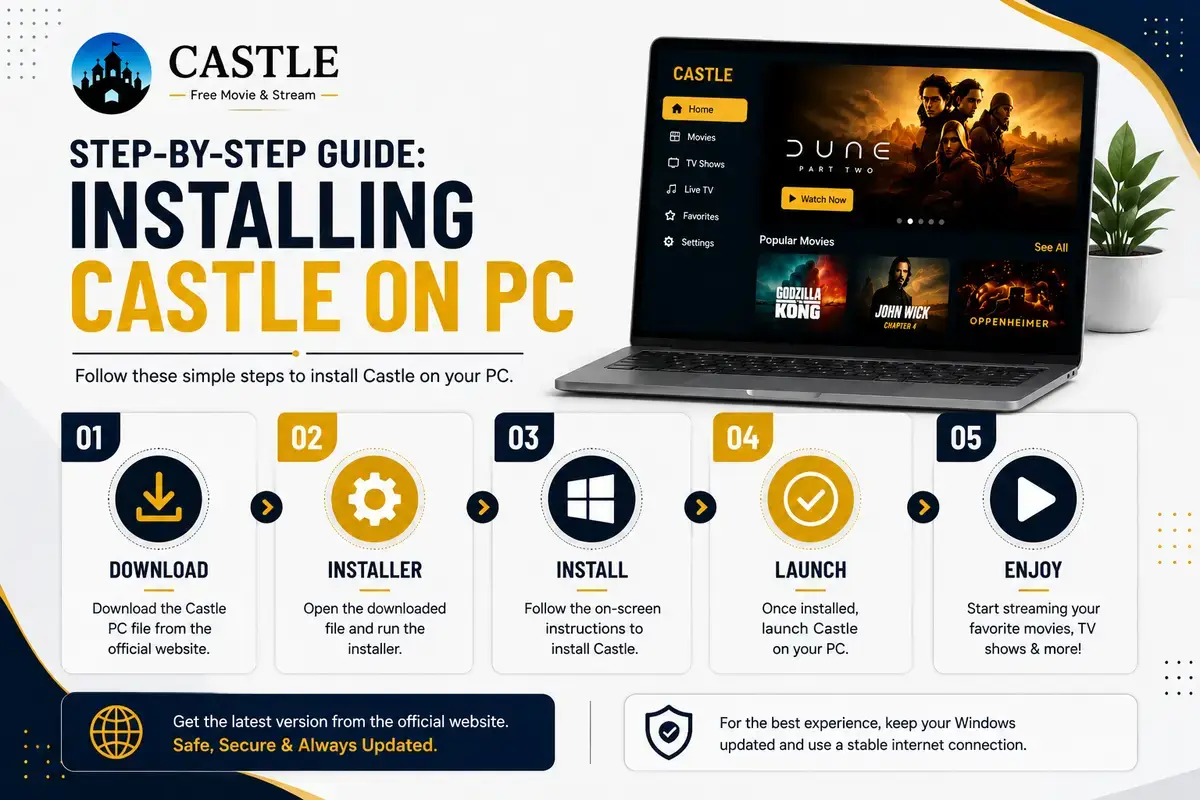
Castle on PC: the emulator path
There is no native Windows or macOS build. To watch on a computer you install a free Android emulator and run the phone APK inside it. The experience depends on the emulator and your hardware rather than on Castle itself.
Check your emulator's own system requirements before installing one. Once it is running, open the official download page inside the emulator's browser and install Castle as you would on a phone.
When installation fails: a short diagnostic tree
Work from the simplest cause first. Most setup problems are resolved by one of the checks below, without reinstalling anything more than once.
If none of these steps help, write down the exact message Android shows and include it when you contact support. A screenshot of the version and size shown for your file is also useful.
- No file saved: check connection and free storage, then download again from the official page
- Install blocked: allow Install unknown apps for the browser or file manager you used
- App not installed: remove an older or unofficial Castle build first
- Parse error: delete the file and download a fresh copy from this website
- App opens, streams fail: check the network and lower playback quality
FAQ
How long does installation take?
Usually under five minutes. Most of that is the download; the install itself takes a few seconds.
Do I need to enable Unknown sources?
Yes. Castle is installed from an APK rather than the Play Store, so Android needs permission. You can disable the setting afterwards.
Can I use Castle on more than one device?
Yes. Use the phone APK on Android phones and tablets, or the separate TV APK on Android TV boxes and Fire TV Stick. No account syncing is needed to watch.
Is there an iOS version of Castle?
No. Castle is an Android app. See the iOS availability page for details and safe alternatives.