
Blog
Castle APK Permissions and Installation Safety: What Android Asks and Why
The permissions Castle requests on Android, what each one is used for, how to check you have the official package, and where the unknown-sources setting ends.
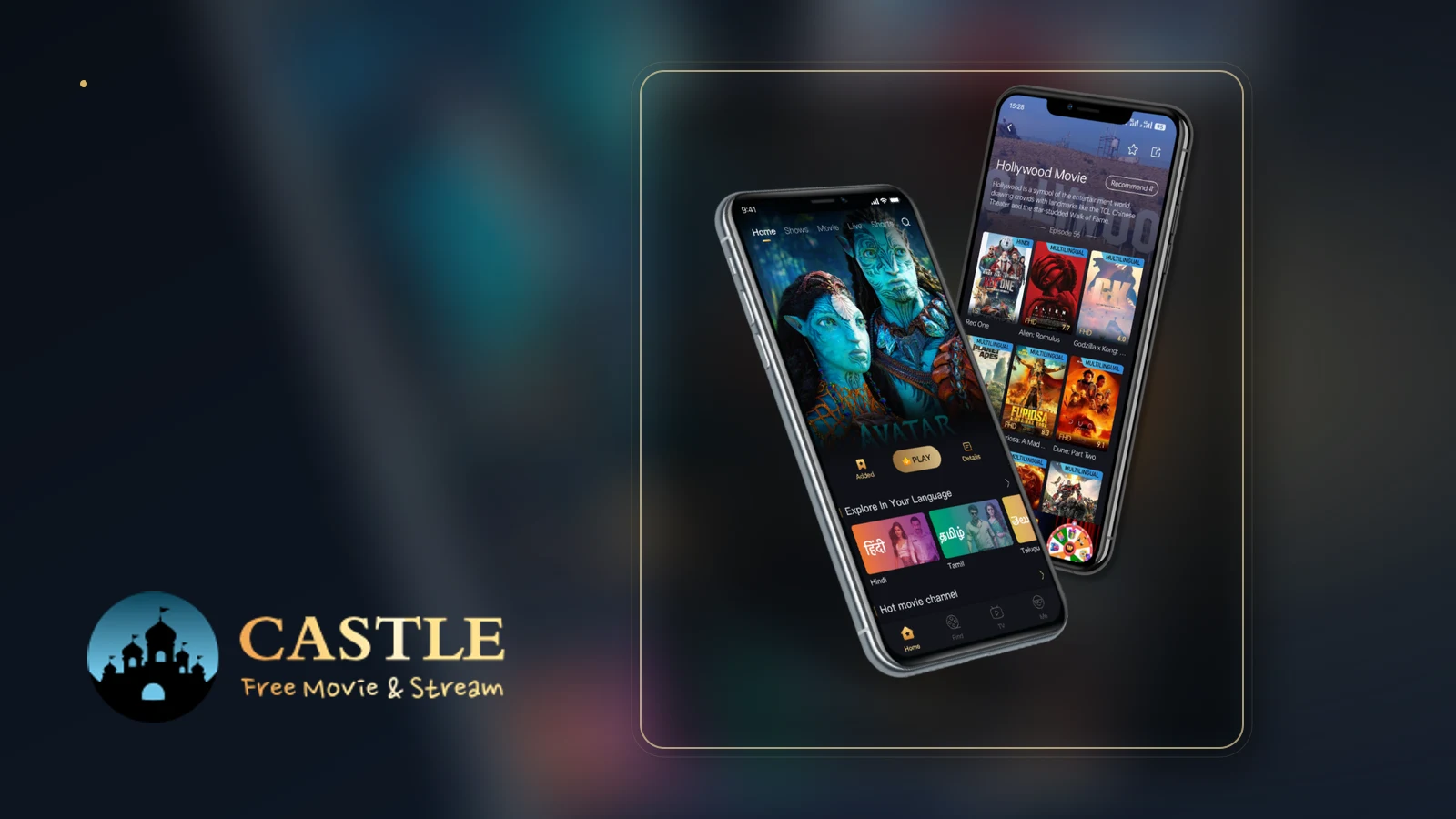
This guide was written by the Castle Content Team and last reviewed on 26 November 2026. It describes the permissions you may see while installing the Castle APK on Android, what each one is used for, how to check that you have the official package, and where the unknown-sources setting ends. It does not publish check values, third-party scan verdicts or any claim that an installation can never carry risk; the checks below are the observable ones.
What happens before the app opens
Castle is distributed as an APK from the official Castle website rather than through the Google Play Store. Because Android treats every file installed outside the Play Store the same way, your phone shows the standard sideloading warnings before the installer opens. These notices appear for every APK you install from outside the store; they are a source reminder, not a verdict that the file is harmful.
The current Android release is v2.1.4, published on 21 November 2026. The file is about 35.7 MB and requires Android 6.0 or later. A separate TV build, v1.1.3 at about 21 MB, is made for Android TV and Fire TV devices. Compare these details on the download page before you install.
Permissions Castle requests, and why
Once installed, Castle asks only the permissions its playback features need. The two main observable groups are:
- Storage or file access: used only when you choose to save a title for offline viewing. The app needs somewhere to place the downloaded video on your device.
- Internet access: required to stream films, shows, live channels and sport over your connection.
Normal watching does not need contacts, SMS messages, call logs, the camera, the microphone, photos from your gallery, location history, payment apps, banking details or biometric data. If a build using the Castle name asks for any of these, it does not match the official app described here.
Android sometimes groups storage access under a broader media or files permission depending on the device version. Review the permission list shown during installation, or the one in Android settings after install: it should line up with the two groups above.
How to verify you have the official package
You cannot verify an APK from a reassuring logo or a short name alone. The practical checks are source, version, size, platform requirements and permissions:
- Download only from the official Castle website. Do not use mirror stores, chat links, forums or repackaged bundles, which may host outdated or modified files.
- Before installing, compare the version number, file size and minimum Android version with the details on the download page. The current build should match v2.1.4, about 35.7 MB, Android 6.0 or later; the TV build should match v1.1.3, about 21 MB.
- After installing, open the app settings and check the version shown there against the download page. They should match.
- Review the permission list in Android settings. It should cover storage for downloads and internet for streaming, and nothing beyond that.
- Refuse any file described as a mod, cracked, premium-unlocked or repackaged, even if it shows the Castle name.
This guide does not rely on published check values or third-party scan reports, and it does not invent any. Until an official verification value is provided on this site, source, version, size and permission list are the checks you can perform yourself. These steps lower the chance of installing a modified or counterfeit build; they are not a guarantee about every file on the internet, and you should still avoid installers you cannot trace back to the official website.
Where the unknown-sources setting applies
Installing outside the Play Store requires a one-time setting on most Android devices. The boundary matters:
- The setting authorizes a specific app to open APK files, usually your browser or the file manager you used to download the file. It does not give Castle any extra access to your phone.
- You can turn the permission back off after installation; the already-installed app keeps working.
- The toggle is not a blanket approval of every file you later open. Each APK still asks for its own permissions, which you review at install time.
- Android TV and Fire TV use a similar Apps from Unknown Sources toggle in the device settings; the same boundary applies there.
If Android shows a Play Protect warning during sideloading, read it as a standard notice for non-Play-Store installs. Confirm the file came from the official website before continuing. If you are unsure of the source, delete the file and download again from the official site.
If something looks wrong
Uninstall any build that requests permissions the official app does not need, or that you cannot trace to the official website. Do not open it or sign in inside it. Report a suspicious app, mirror or website to the Castle support address listed on the contact page: support@castleapkhd.in, with the source link or file details. Watching does not require an account, so there is no viewing profile to recover; if your message concerns the in-app invite area, include only the account you used there.
Frequently asked questions
Is the Castle APK safe to install?
When it comes from the official Castle website, the installer is the package distributed by Castle. No sideloaded app can be described as risk-free, and this guide does not make an absolute guarantee. Verify the source, version, file size and permission list before you install, and avoid any modified or repackaged build.
Why does Android warn about an unknown source?
Castle is installed from outside the Play Store, and Android shows this warning for every sideloaded APK. The notice records where the file came from; it is not a report that the app is harmful. Check the download source before you continue.
Does Castle need my contacts, camera or microphone?
No. The official app uses storage for offline downloads and internet access for streaming. It does not request contacts, SMS, call logs, camera, microphone, photos, location, payment apps or biometrics. A build that asks for these is not the official one.
How do I report a fake or suspicious Castle APK?
Email support@castleapkhd.in through the contact page, including the link or file details you saw. Do not install or open the suspicious build while you wait for a reply.
For the full installation walkthrough, see the getting started guide and the APK installation guide on this site. The security page also summarizes the permission and data-handling position in plain terms.
Keep the checks current
Release details can change, so recheck the version, size and Android requirement on the download page whenever you reinstall or update. The security overview explains the data-handling position in short form, and the installation guide walks through the same steps in detail. If installation still fails, the troubleshooting page covers the common causes.
Download only from this site, then check the version, file size, and permission notes on the download page. Castle APK Security & Permissions | Official Verification