
Blog
Castle Languages and Subtitles: How to Choose Audio, Dubs and Captions
How the 21 interface languages differ from per-title audio and subtitle tracks, where to switch them in the player, and why some titles lack a subtitle or dub in your language.
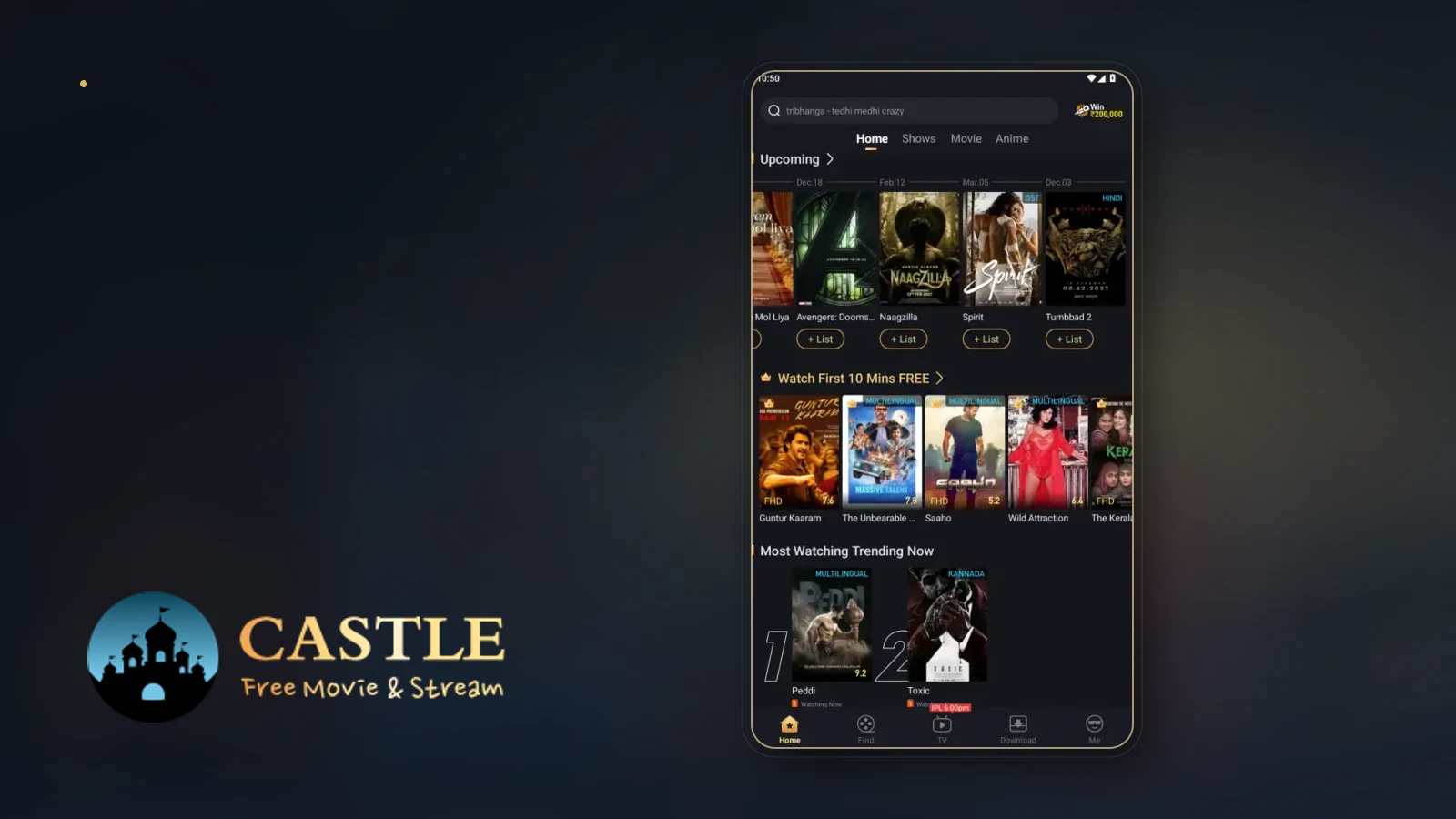
Castle brings films, web series, live television and sports into one free Android app, and the viewing experience depends a lot on language. This guide was written by the Castle Content Team and last reviewed on 26 November 2026. It explains the difference between the app language and the language of a title, where subtitles and dubbing are switched in the player, why some titles do not carry a track in your language, and what to do when a subtitle or dub is missing.
Two separate language settings
It helps to separate two things that are easy to confuse. The first is the interface language: the menus, labels and buttons you tap while browsing. The second is the language of the content itself: the audio track of a film or show, and the subtitle track that appears under the video. Changing one does not automatically change the other. The app and the official website are localized into 21 languages, but a title only carries the audio and subtitle tracks that were produced or licensed for it.
The 21 interface languages are English, Hindi, Tamil, Telugu, Malayalam, Kannada, Marathi, Punjabi, Bengali, Spanish, French, German, Portuguese, Japanese, Korean, Arabic, Russian, Indonesian, Turkish, Vietnamese and Thai. This list controls the language of the app shell, not the tracks available inside any specific video.
How to change the app and website language
On the website, use the language selector in the header or footer to switch the interface to one of the supported languages. In the Android app, the same option appears in the settings area. The selection updates the menus, search labels and on-screen guidance for your session. It does not re-dub every title you watch, and it does not add subtitle tracks that a title does not already include.
If you change the interface language and a film still opens in another language, that is expected: the title is playing its default audio track, and you pick a different track from the player menu while playback is running.
Where to switch subtitles and audio during playback
Start playing a title, then tap the player to bring up its controls. The subtitles menu lists every subtitle track that the current title carries, and the audio menu lists the available spoken tracks. Pick the one you want from either list; the player applies it to playback immediately.
- Subtitle languages appear in the subtitles menu only when a subtitle track exists for that title.
- Audio languages appear in the audio menu only for titles released with more than one spoken track.
- If a menu entry is missing, the title has no track in that language rather than a hidden setting you missed.
Your subtitle and audio choices are stored locally on the device, alongside your watch history and downloads. Watching does not require an account, so these preferences are kept on the phone or TV box rather than uploaded to a server. Uninstalling or clearing the app resets them.
Why some titles have no subtitle or dub in your language
Track availability follows the source of each release rather than a single app-wide rule. Several reasons come up often:
- A title may have been produced and licensed only in its original language, with no subtitle or dub prepared for other markets.
- Dubbed tracks exist only where a dubbing release was actually made; a film shown in its original language may still carry subtitles in another language.
- Live television channels and live sport usually carry a single audio track and rarely offer alternate subtitles or dubbing.
- Regional cinema often keeps its native track with localized subtitles rather than a full dub.
- Availability can also vary by region and by licence, so a track missing today may appear after a content update.
When the track you want is absent, open the title page and check the listed audio and subtitle languages before playing. You can also search the alternate or international title, in case another release of the same film carries a different track. If neither is available, the title simply has not been localized into that language yet.
Tips for multilingual viewing
- Set your interface language first, so the menus match the language you read comfortably.
- Check the title page for track languages before you start playback, especially for films you plan to watch with family.
- Subtitles carried by casting can depend on the method: the native TV app and most cast routes carry subtitles, while DLNA and mirroring may not pass them through. If subtitles are essential, use the native Castle TV app when possible.
- On a weaker connection, lower the playback quality before changing tracks; a struggling stream is more likely to drop subtitles or audio.
- Remember that subtitle choices stay on the current device, so a subtitle selected on the phone will not appear on the TV installation until you set it there too.
Frequently asked questions
How many languages does Castle support?
The app and the official website are localized into 21 interface languages. Audio tracks and subtitles are decided per title, so the number of spoken or subtitled tracks you see depends on the film, show or channel you open.
Why are subtitles still in English after I changed the app language?
The interface language and the subtitle track are separate settings. Changing the menus does not switch subtitles automatically. Open the subtitles menu in the player and choose another language; if that language is not listed, the title has no subtitle track in it.
Does every movie in Castle have a dubbed version?
No. A dub exists only where a dubbed release was produced and licensed. Many titles play in their original language with subtitles, and live channels generally keep one audio track with no alternate dub.
Are my subtitle choices saved between sessions?
Yes, on the device you used. Preferences such as subtitle and audio choices are stored in local storage and do not require an account. They are removed if you uninstall the app or clear its data.
For setup steps beyond language, see the getting started guide and the walkthrough for casting Castle to a Smart TV. The rest of the Castle blog covers playback, downloads and installation in plain terms.
Related viewing guides
Language choices are only one part of setup. The getting started guide covers the rest of first-time setup, and the Smart TV casting guide explains how subtitles behave across different cast methods. If a title will not play at all, try the troubleshooting page; to prepare a phone or TV before setup, use the official download page.
Download only from this site, then check the version, file size, and permission notes on the download page. Castle APK Security & Permissions | Official Verification