
Blog
Getting Started with Castle
Learn how to set up Castle and use its main streaming features.
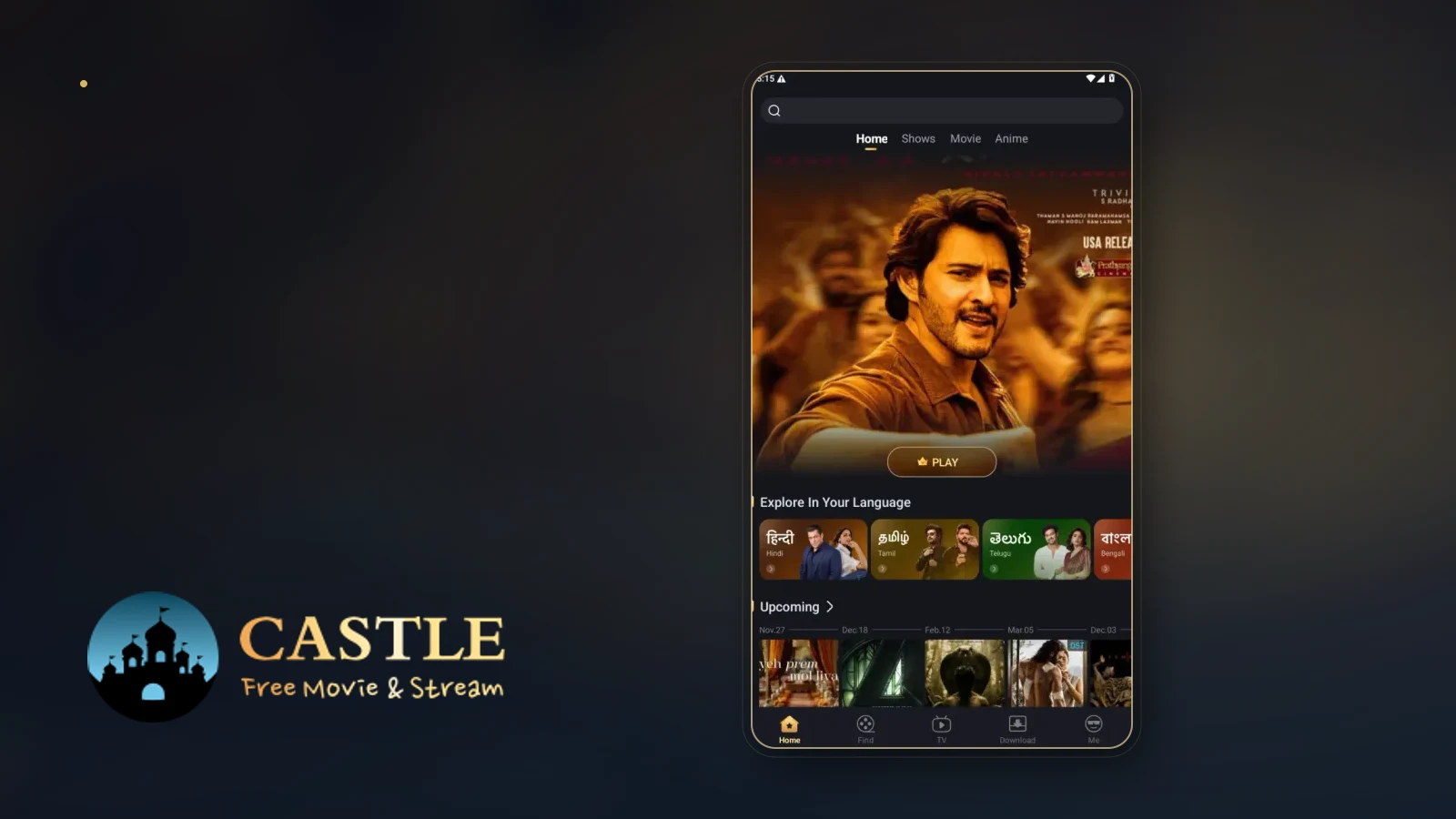
Castle is a free streaming app for Android that brings movies, web series, live television and sports into a single place. If you have just installed it, this guide walks you through the whole setup — from the official download to playback settings — so you can start watching with confidence.
Before you begin
Make sure your device runs Android 6.0 or later and has about 35.7 MB of free storage for the APK, plus a little room for cached streams. A stable Wi-Fi connection is recommended for HD streams. Mobile data works as well, but downloads and casting are far more reliable on Wi-Fi. If you plan to watch on a television, keep your phone and TV on the same network.
Downloading the official APK
Always get the installer from the official Castle website. Third-party mirrors may repackage the app with unwanted code, and an outdated build can break sign-in or playback. On this site, the download button links to the verified APK for the current release. Check the version number on the download page against the version shown after installation — they should match.
Because Castle is distributed as an APK outside the Play Store, Android will ask you to allow installation from unknown sources. This is a standard Android permission, not a warning specific to Castle.
Installing the app
- Open the downloaded APK file from your notification shade or file manager.
- When prompted, enable the permission for your browser or file manager to install unknown apps. You can turn it off again after installation.
- Tap Install and wait for the process to finish.
- Open Castle from your app drawer and grant the storage permission if asked — it is used for offline downloads only.
Finding your way around
The Home tab is the starting point. It surfaces trending titles, recently added releases and live channels, so it is the quickest way to see what is available in your region. The catalog is grouped into films, series, TV and sports; tabs let you jump between them without going back to the home screen.
Use search when you already know what you want. Results are matched against titles and genres, and filters help you narrow by category or language. If a title is not available in your country, trying a different language filter often surfaces a dubbed version of the same film.
Watching without an account
You can start streaming without creating an account. Sign-in is only needed for account-linked features such as invite rewards; the current rules and amounts are shown on the Rules page inside the app.
Offline downloads
For travel or poor connectivity, selected titles offer a download option. Open a title and tap the download icon, then choose a quality. Lower qualities save storage and finish faster; higher qualities look better on larger screens. Downloads are stored locally and can be removed at any time from Settings — Downloads.
Subtitles and audio
While a video is playing, tap the player and open the subtitles menu. Available subtitle and audio languages are listed in the player menu and vary by title. Audio language can be switched from the same menu for titles that ship with multiple tracks.
Watching on a bigger screen
There are two ways to watch on a television. The first is casting: start playback on your phone, tap the cast icon and select your TV. The second is the dedicated Castle TV APK, which is a better fit for Android TV and Fire TV devices because it does not need a phone to stay connected. Both approaches are covered in our guide to casting Castle to a Smart TV.
Privacy and permissions
Castle can stream without an account. Review app permissions periodically: storage is used for downloads when you choose to save a title, and location is not required for normal streaming. If you use invite rewards, sign in only through the official app and follow the in-app Rules.
Tips for smooth playback
- Restart your router if streams buffer at peak hours; a crowded channel is often the cause.
- Lower the quality in the player if your connection drops below roughly 5 Mbps.
- Close background apps before casting to free up memory on older phones.
- Keep the app updated — playback fixes are usually delivered in point releases.
Troubleshooting common problems
If installation is blocked, recheck the unknown-sources permission for the exact app you used to open the APK. If the app crashes on launch, clear its cache from Android settings rather than reinstalling immediately. If a title will not load, try switching quality or restarting playback; availability can also change by region.
Final thoughts
Setup takes only a few minutes, and most of the options above are optional. Start with the official APK, explore the Home tab, and save selected titles for offline viewing once you know what you like to watch. For more detailed walkthroughs, browse the rest of the Castle blog.
Where to go next
For the exact permission list and how to confirm a genuine installer, read the APK permissions and safety guide. To switch audio or captions, see the languages and subtitles guide. When you want a permanent big-screen setup, the Castle TV page covers the TV build, and the install guide repeats the core steps in a short checklist.
Download only from this site, then check the version, file size, and permission notes on the download page. Castle APK Security & Permissions | Official Verification