
Blog
Cast Castle to Your Smart TV
Steps for casting Castle from your phone to a TV.
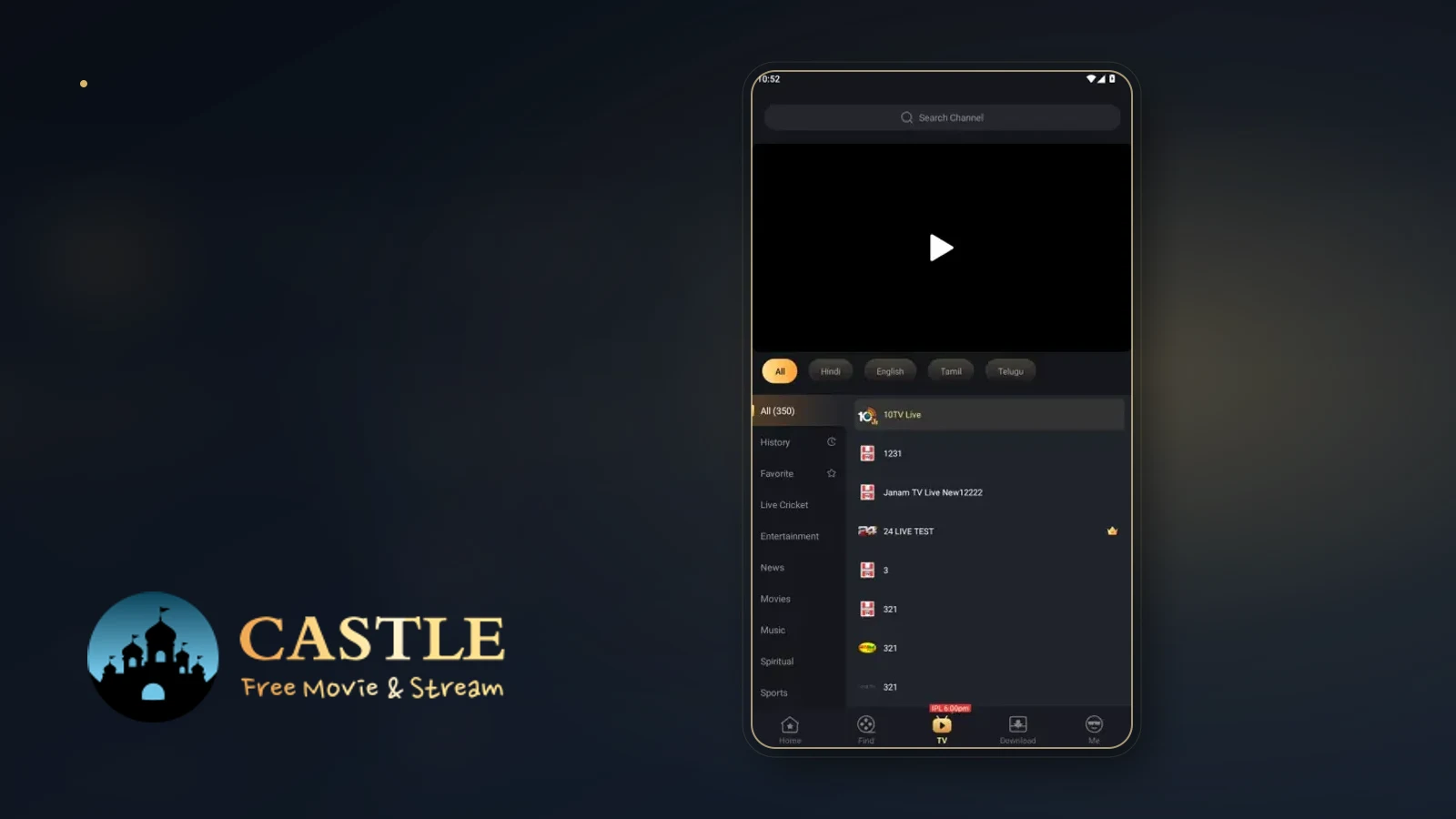
Watching Castle on a phone is convenient, but movies and live sport feel better on a television. There are several ways to get content onto the big screen, and the right one depends on your TV. This guide covers each method in order of reliability, then explains how to fix the problems people hit most often.
Before you start
Every casting method needs one thing in common: your phone and TV must be on the same local network. Disable mobile data on the phone during setup, because a device connected to 4G or 5G will not be discovered by the TV. If your router offers both 2.4 GHz and 5 GHz bands, put both devices on the same band — some older TVs cannot see devices on the other one. Guest networks and AP isolation also block discovery, so switch to the main Wi-Fi network first.
Method 1: Chromecast or a TV with built-in Cast
This is the simplest option and works with most modern televisions, Chromecast dongles and Android TV boxes.
- Connect your phone and TV to the same Wi-Fi network.
- Start playing a film or show in Castle.
- Tap the cast icon in the player — usually a rectangle with a small arrow in the corner.
- Pick your TV from the list of devices.
- The player will show a connected state. You can now control playback from the phone or lock the screen.
If the cast icon does not appear, check that your phone's Cast services are up to date and that no VPN is active. A VPN frequently hides the local network from discovery.
Method 2: DLNA
Many Samsung, LG and Sony televisions support DLNA even when they do not support Chromecast. Open your TV's input or network menu and look for DLNA, Home Network or Media Server. Once the TV is in receiving mode, open Castle's settings, choose Cast, select DLNA and pick the TV. DLNA is less feature-rich than Chromecast — subtitles may not appear on the TV — but it is stable for local media.
Method 3: Screen mirroring
Mirroring copies everything on your phone to the TV, including notifications. It is a good fallback when an app-specific cast button is missing.
- Android: open Quick Settings, tap Cast, Screen cast or Smart View, then choose your TV.
- Samsung phones: use Smart View from the Quick Settings panel.
- iPhone or iPad: open Control Centre, tap Screen Mirroring and select your AirPlay 2 compatible TV.
Rotate your phone to landscape before starting playback, and turn off battery saver — mirroring uses more power and some phones reduce the output resolution when the battery is low.
Method 4: Install the Castle TV app
For Android TV, Google TV and Fire TV Stick, a native app is the most reliable option. Because it runs on the television itself, nothing depends on the phone staying powered on or on the local network.
- On the TV, install the Downloader app from the app store.
- Open Downloader and enter the official Castle TV APK address from the Castle website.
- Download the file, then open it and confirm installation.
- Launch Castle from your TV's app list — no sign-in is needed to watch.
Use the official address only. Typing a URL from a forum or search result increases the risk of installing a modified build. If installation is blocked, enable apps from unknown sources in the TV's developer settings and try again.
Method 5: HDMI cable
When networking fails entirely, a USB-C to HDMI adapter turns any phone with video output into a wired player. This is the most dependable option in hotels and shared spaces where you cannot control the router. Plug in the adapter, switch the TV to the matching HDMI input and start playback in landscape mode.
Troubleshooting
The TV is not detected
Confirm both devices are on the same network and that AP isolation is off. Restart the router, then restart both devices. Remove any VPN or private DNS setting temporarily.
Video buffers after casting
Casting streams from the internet through your phone, so a weak Wi-Fi signal affects playback. Move closer to the router, lower the quality in the player, or switch the phone to the 5 GHz band if the TV supports it.
Sound but no picture, or the wrong aspect ratio
Change the TV's picture mode to 16:9 and disable any zoom setting. For DLNA and mirroring, the TV controls scaling; for the native app, the setting lives in Castle's player options.
Subtitles missing on the TV
Chromecast generally carries subtitles; DLNA often does not. If they are essential, use the native TV app or enable subtitles in the TV's own menu.
Choosing the right method
Use Chromecast for everyday viewing, the native TV app for a permanent setup, DLNA or mirroring as fallbacks, and HDMI when you have no control over the network. Once connected, keep the phone screen on until playback starts, then lower the brightness to save battery.
Final thoughts
Most casting problems come down to network isolation rather than the app itself. Work through the checks above in order and you will usually be watching within a few minutes. For more setup help, see our getting started guide and the rest of the Castle blog.
Before you buy or change hardware
Most connection problems are solved by network checks rather than new equipment. If you are setting up a television for the first time, the Castle TV page explains the native app, and the download page has the current TV build details. Subtitle behaviour across cast methods is covered in the languages and subtitles guide; for problems that persist, the troubleshooting page lists the usual causes.
Download only from this site, then check the version, file size, and permission notes on the download page. Castle APK Security & Permissions | Official Verification